Create an achievement
Open the Achievements page under Gamification for your location, click + Achievement, fill in the achievement details, and click Create to add it to your location.
Before you start
You must be signed in to the Monstro X dashboard.
You need add achievement permission for the location. If you do not see the + Achievement button, your account does not have this permission.
Create an achievement
From the dashboard, open the location where you want to add the achievement.
In the left sidebar, open Gamification and then Achievements.
Click + Achievement in the top right of the achievements list.
In the Create Achievement dialog, fill in the required fields:
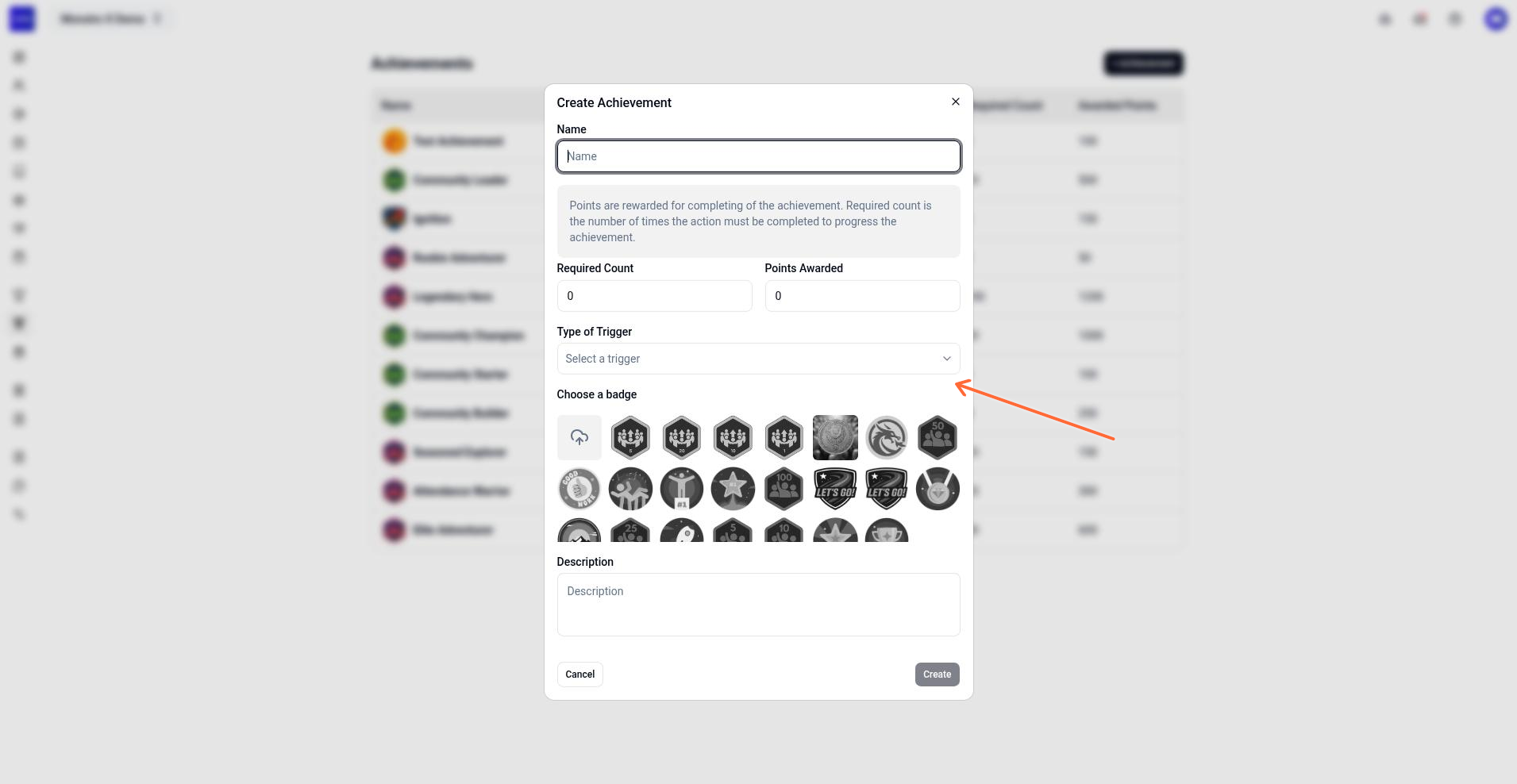
Name — the achievement title shown to members.
Required Count — how many times the trigger must occur to earn the achievement.
Points Awarded — points members receive when they complete the achievement.
Type of Trigger — the member action that counts toward the achievement. Select from the dropdown.
Which Plan — appears only when the trigger type is tied to a plan. Select the plan from the dropdown.
Choose a badge — the icon displayed for the achievement.
Description — what the achievement is about.
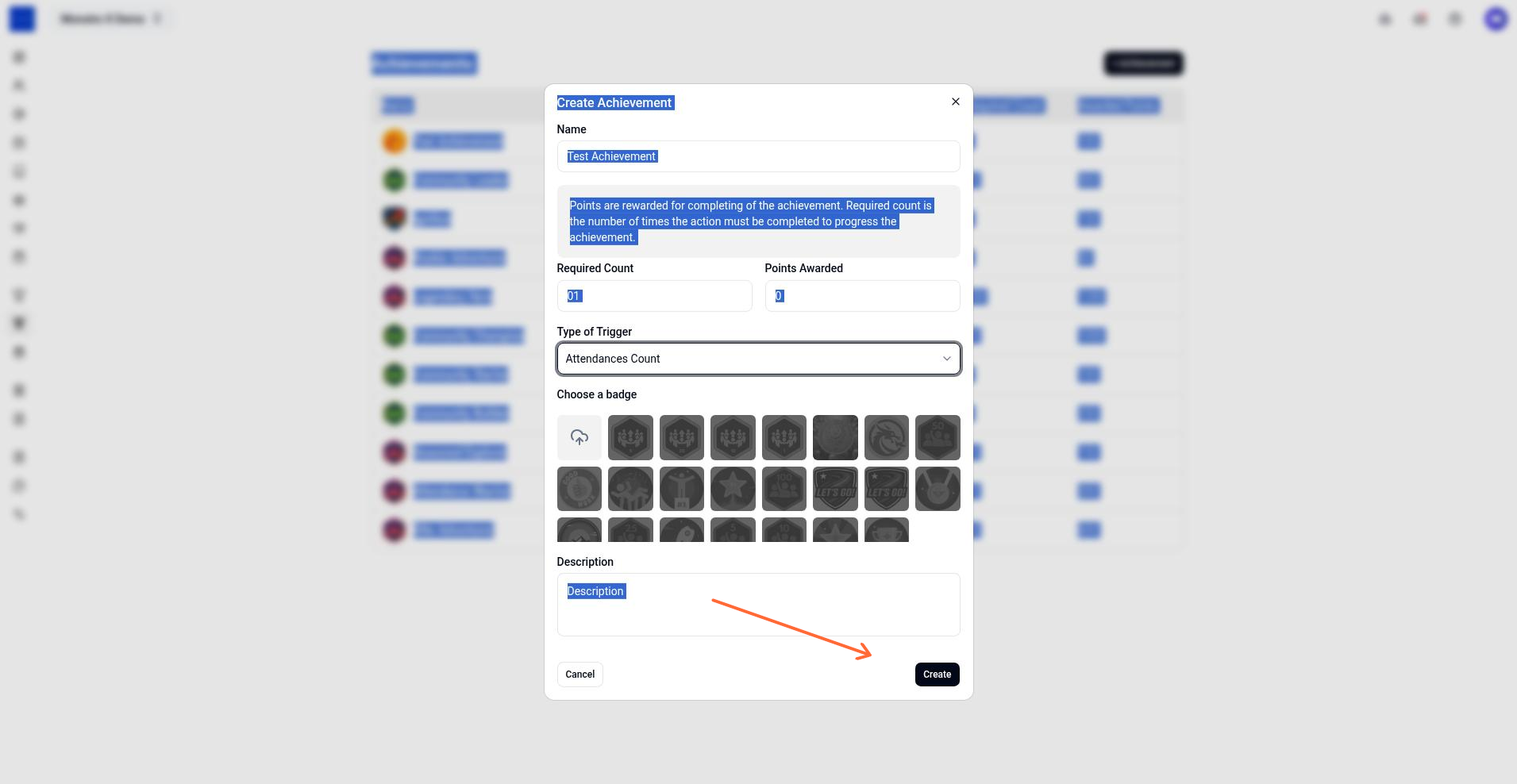
Click Create.
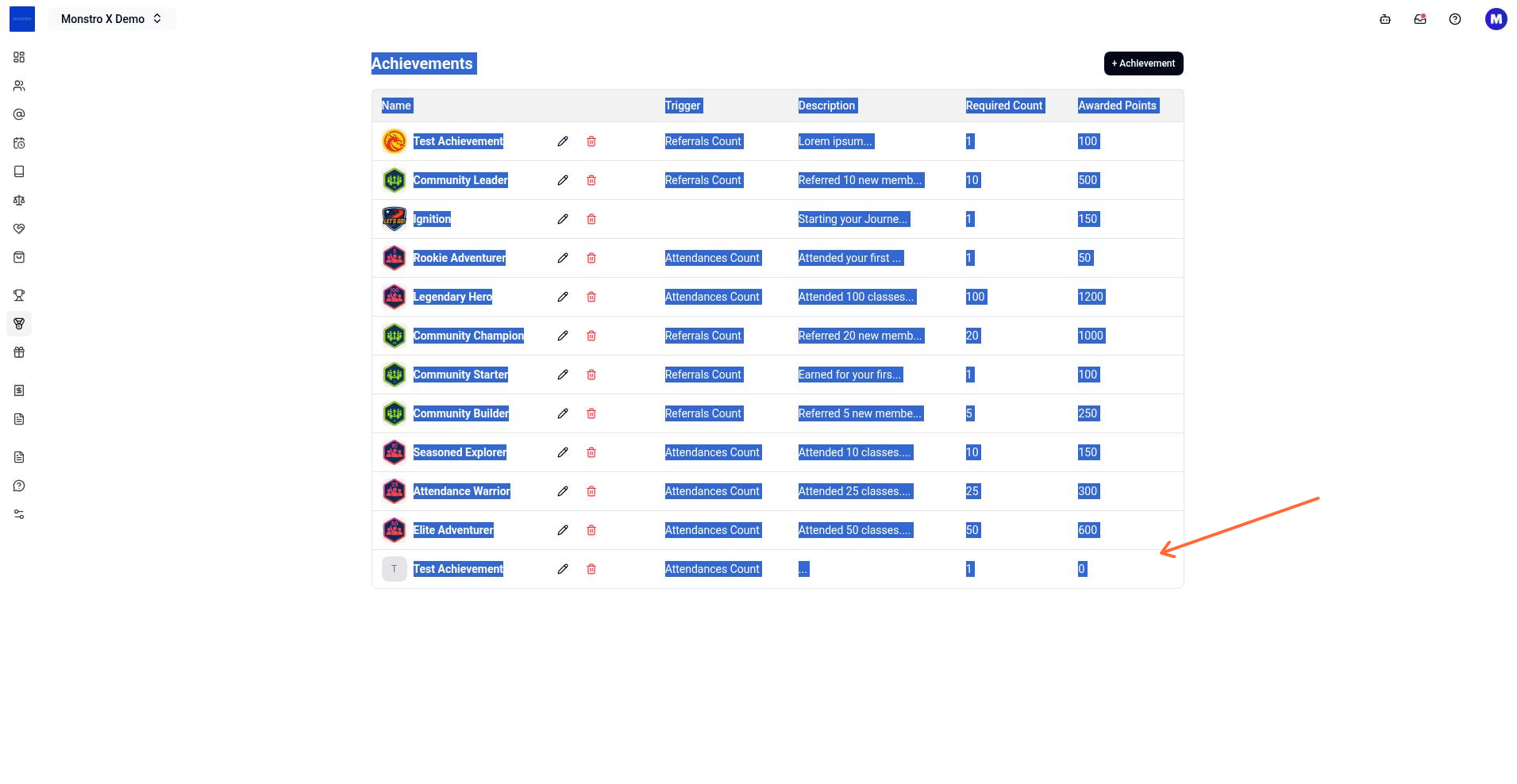
The dialog closes and the new achievement appears in the achievements list.
If creation fails
Achievement already exists for this plan — you cannot create duplicate plan-based achievements for the same plan. Choose a different plan or edit the existing one.
You are not authorized to create an achievement — your account lacks the add achievement permission for this location. Contact your account owner.
Something went wrong, please try again later — a server error occurred. Retry after a moment.