Understanding your dashboard
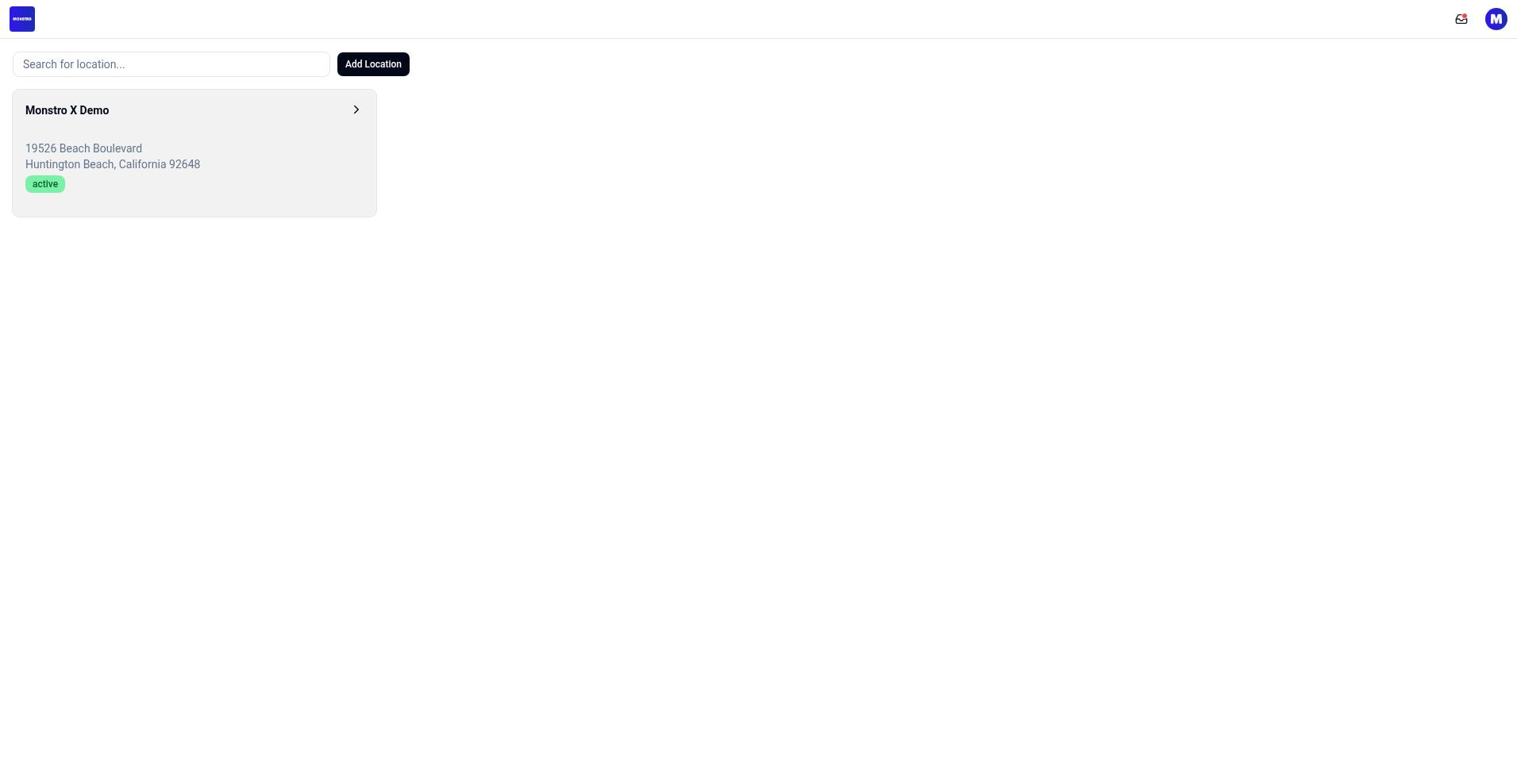
After you log in, your Monstro X dashboard is the home screen for the location you are currently managing. It shows key metrics at a glance and provides the main navigation to every tool you need to run your business.
What you see on the home screen
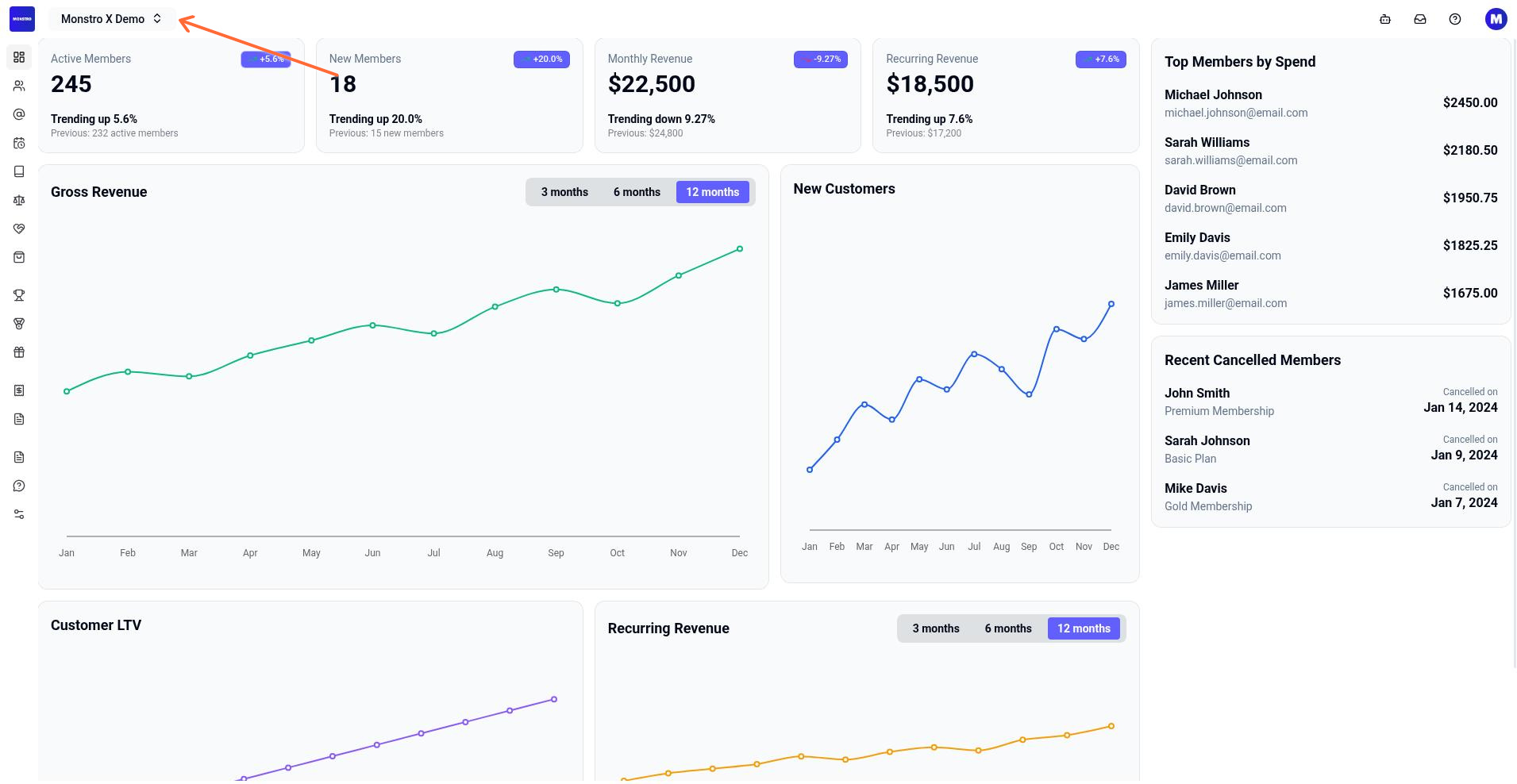
When you open a location, the dashboard displays summary cards and lists for that location. The main view includes:
Active Members — total members currently enrolled
New Members — recent sign-ups
Monthly Revenue — revenue for the current month
Recurring Revenue — expected recurring income
Gross Revenue — overall revenue total
New Customers — first-time customers
Customer LTV — average lifetime value
Top Members by Spend — highest-value members
Recent Cancelled Members — members who recently cancelled
Main navigation
The left sidebar organizes your tools into four groups. Click any item to open that section.
Manage
Dashboard
Members
Staff
Schedules
Programs
Documents
Community
Products
Gamification
Ranks
Achievements
Rewards
Financials
Transactions
Invoices
Other
Website Posts
Support
Settings
Top bar
At the top of every page you will find:
Location switcher — the current location name with a dropdown arrow. Click it to switch between locations or search for one.
Assistant — quick access to the AI assistant
Inbox — notifications and messages
Help — support resources
User profile — your account menu, theme switcher, and log out
Switching locations
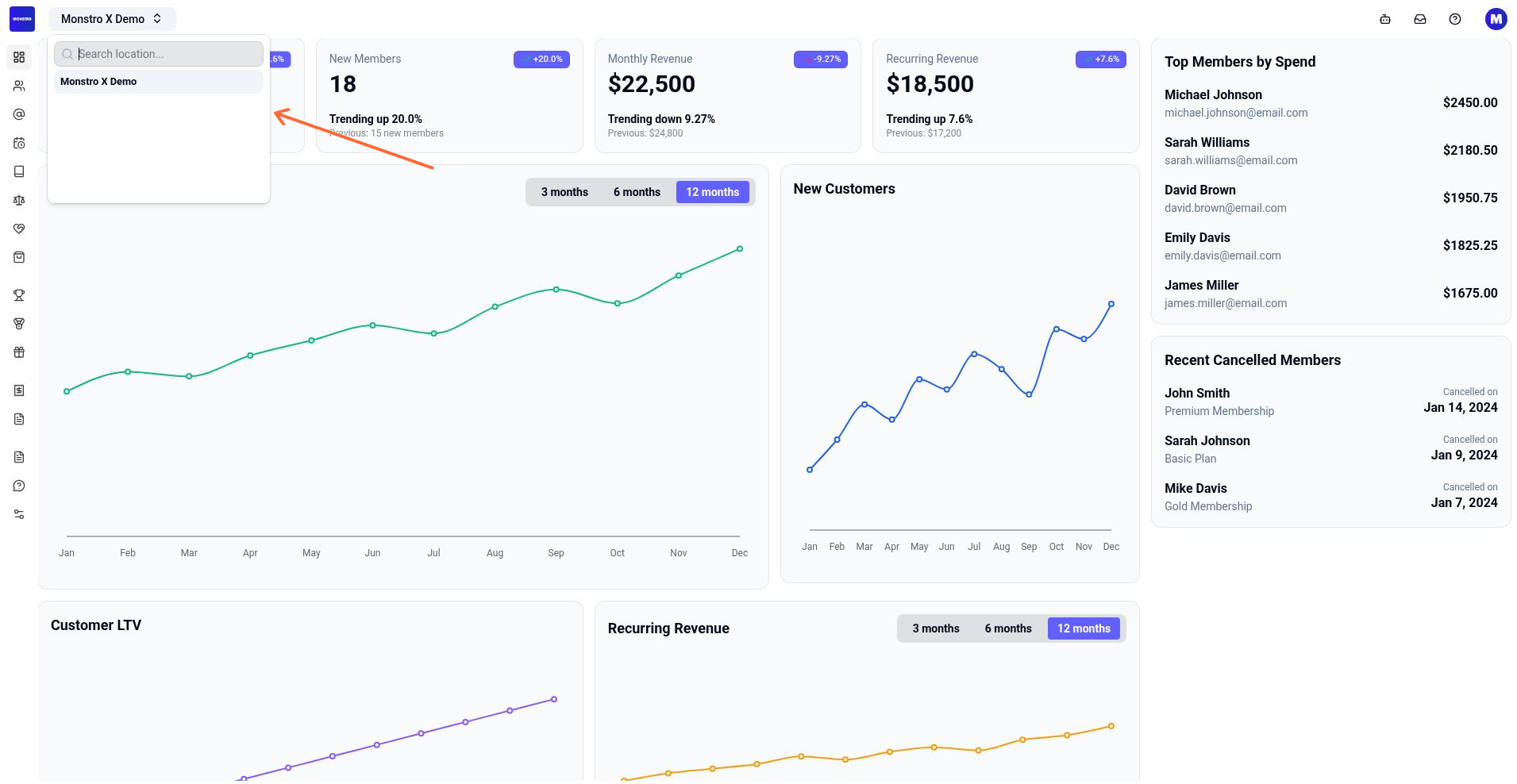
Click the location name in the top bar to open the switcher. If you run multiple locations, you can search by typing in the Search location... field or select a location from the list. The dashboard will reload with data for that location.
Admin and vendor views
Monstro X has two primary workspaces. Most daily work happens inside a location dashboard as described above. If you have admin access, you may also see a separate admin shell with top-level items such as Locations, Vendors, Sales, Posts, Support Docs, Sites, Support, and Settings.
If you do not see a sidebar section or menu item, your account role may not include permission for that area. Contact your account owner to adjust permissions.