
The confirmation field must match the staff member's full name exactly. Check the spelling and try again.
Delete a staff member
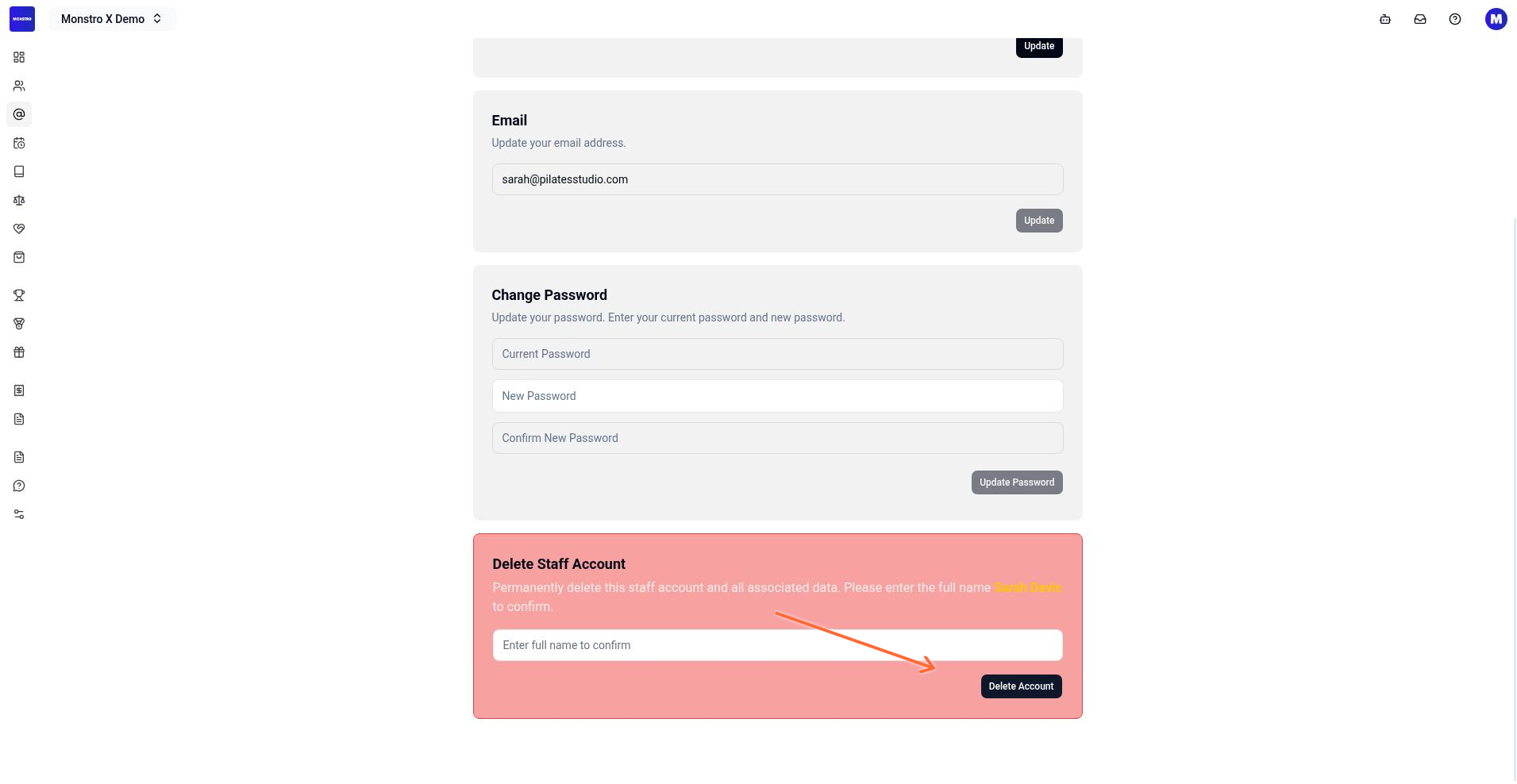
Remove a staff member from your location by opening their detail page and using the Delete Staff Account section at the bottom. You must enter their full name to confirm, then confirm the alert dialog. Once deleted, the staff member is removed from the location, their roles at that location are revoked, and their account is permanently deleted if they are not assigned to any other location.
Before you start
You must have access to the location dashboard where the staff member is assigned. Staff are managed per location, so you can only delete staff members from the location you are currently viewing.
Delete a staff member
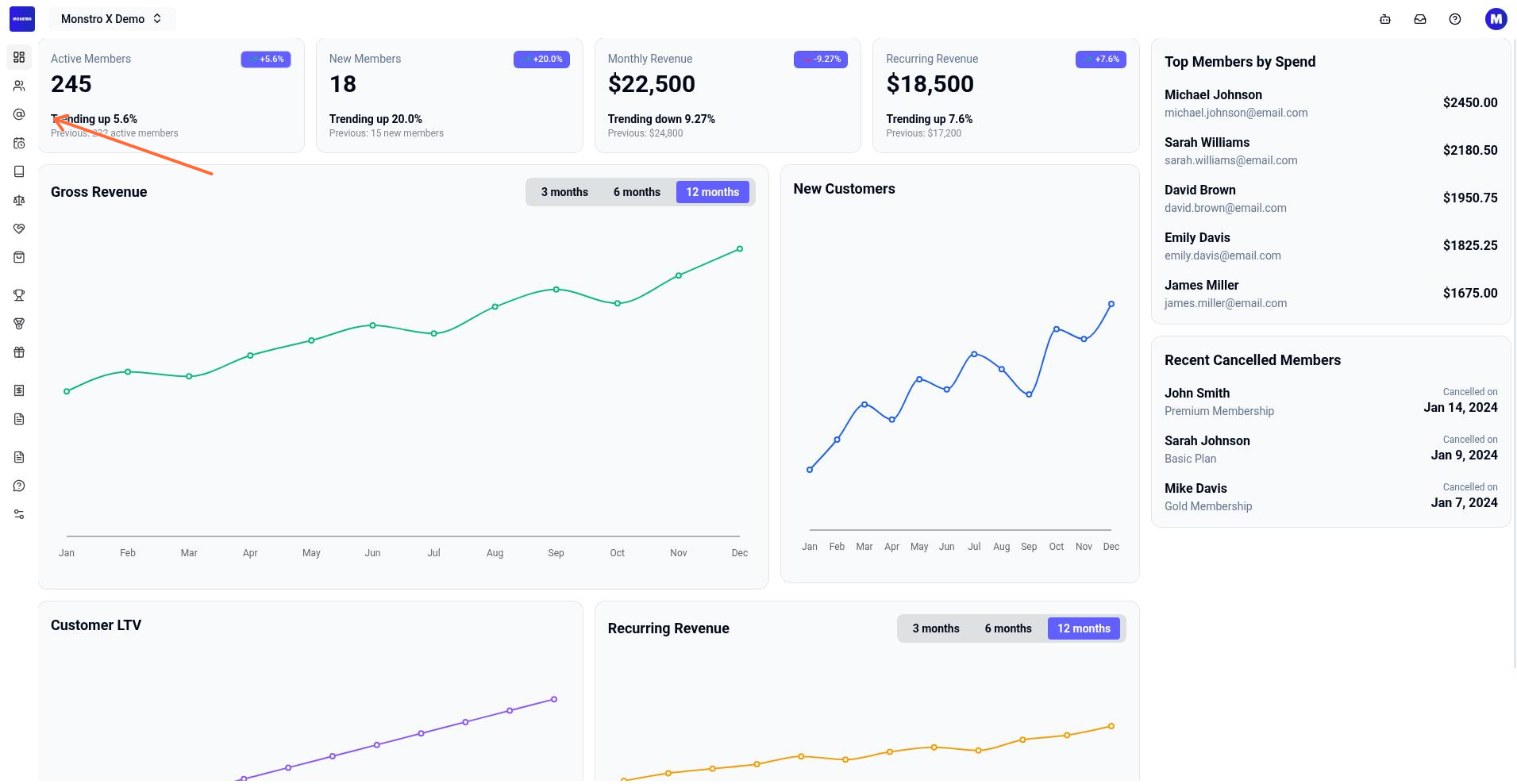
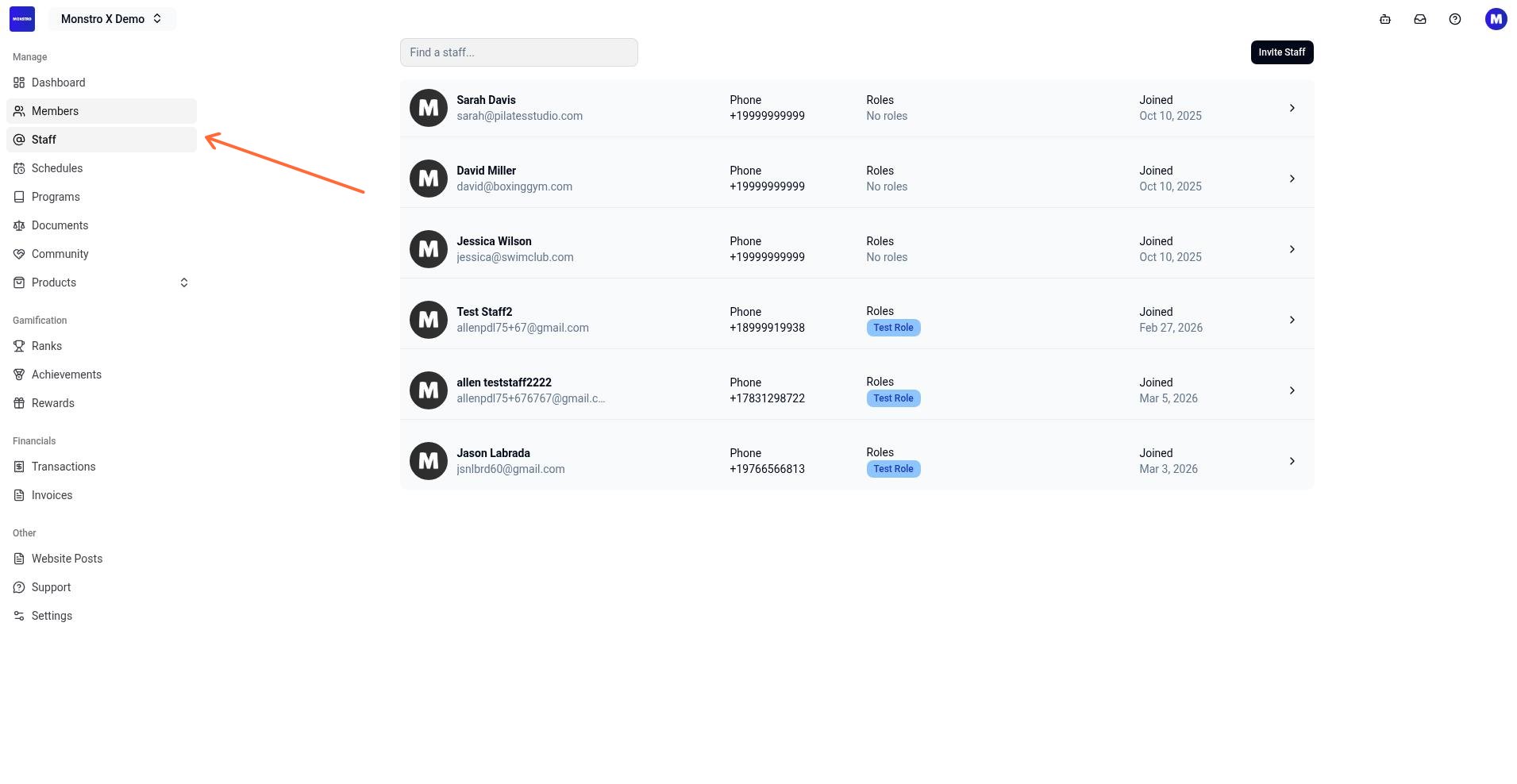
In the left sidebar of your location dashboard, click Staff under the Manage section.
On the staff list page, click the staff member you want to remove.
On the staff detail page, scroll to the bottom and find the Delete Staff Account section.
In the confirmation field, type the staff member's full name exactly as it appears on the page.
Click the red Delete Account button.
In the alert dialog, read the warning, then click Yes, I'm sure to confirm.
After confirmation, the page shows Staff deleted successfully! and returns you to the staff list.
What happens after deletion
The staff member is removed from the current location.
Any roles assigned to them at that location are deleted.
If the staff member is not linked to any other location, their account is permanently deleted.
If they are still linked to other locations, only their association with this location is removed.
This action cannot be undone. If you delete the staff member's global account, all associated data is lost. Make sure you no longer need their records before confirming.
Troubleshooting
"Please enter the correct full name."
"Something went wrong."
The deletion failed, usually due to a network or permission issue. Refresh the page and try again. If the error persists, contact support.
What's next
To add or manage staff permissions, see Add staff and manage permissions.
Was this helpful?
Was this helpful?