
Send a group message
Send a message to every member of a group from the Groups page in your location dashboard. You can also attach images, video, audio, and PDFs.
Before you start
A group must already exist before you can send a message. If your location has no groups yet, create one first.
Send a message to an existing group
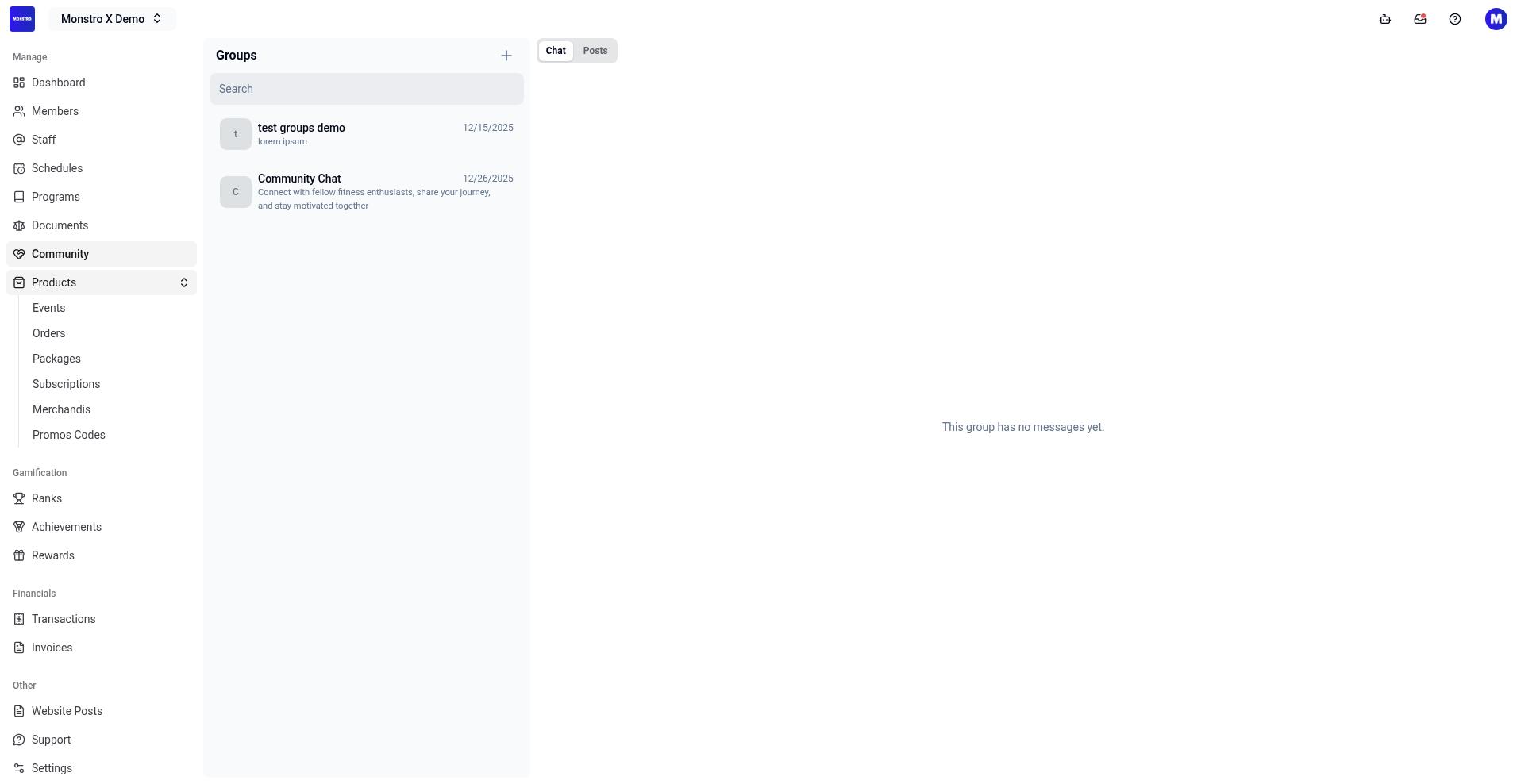
In your location dashboard, open Groups from the left sidebar.
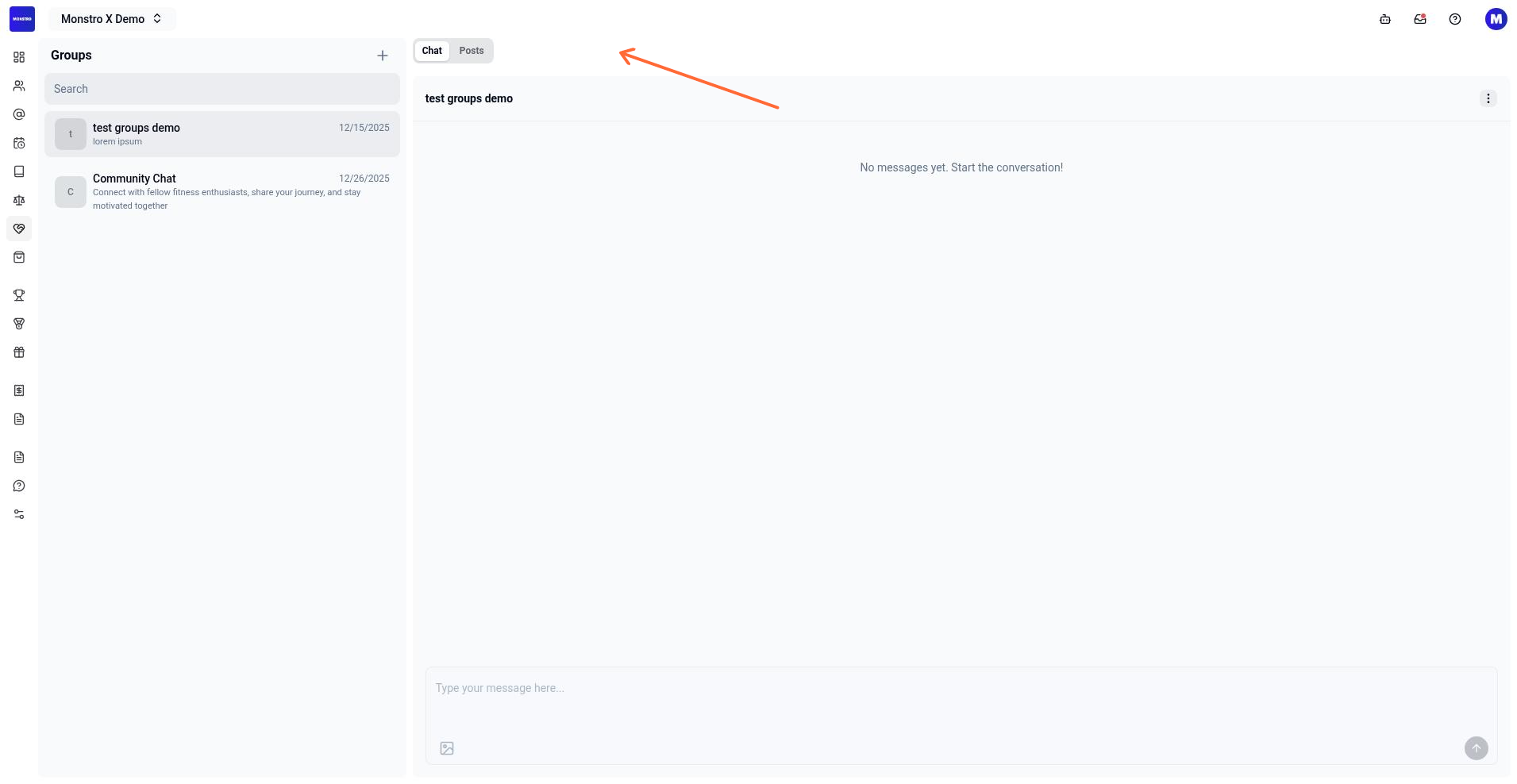
Select the Chat tab.
Click the group you want to message from the list on the left. The chat area on the right shows the group header and any existing messages.
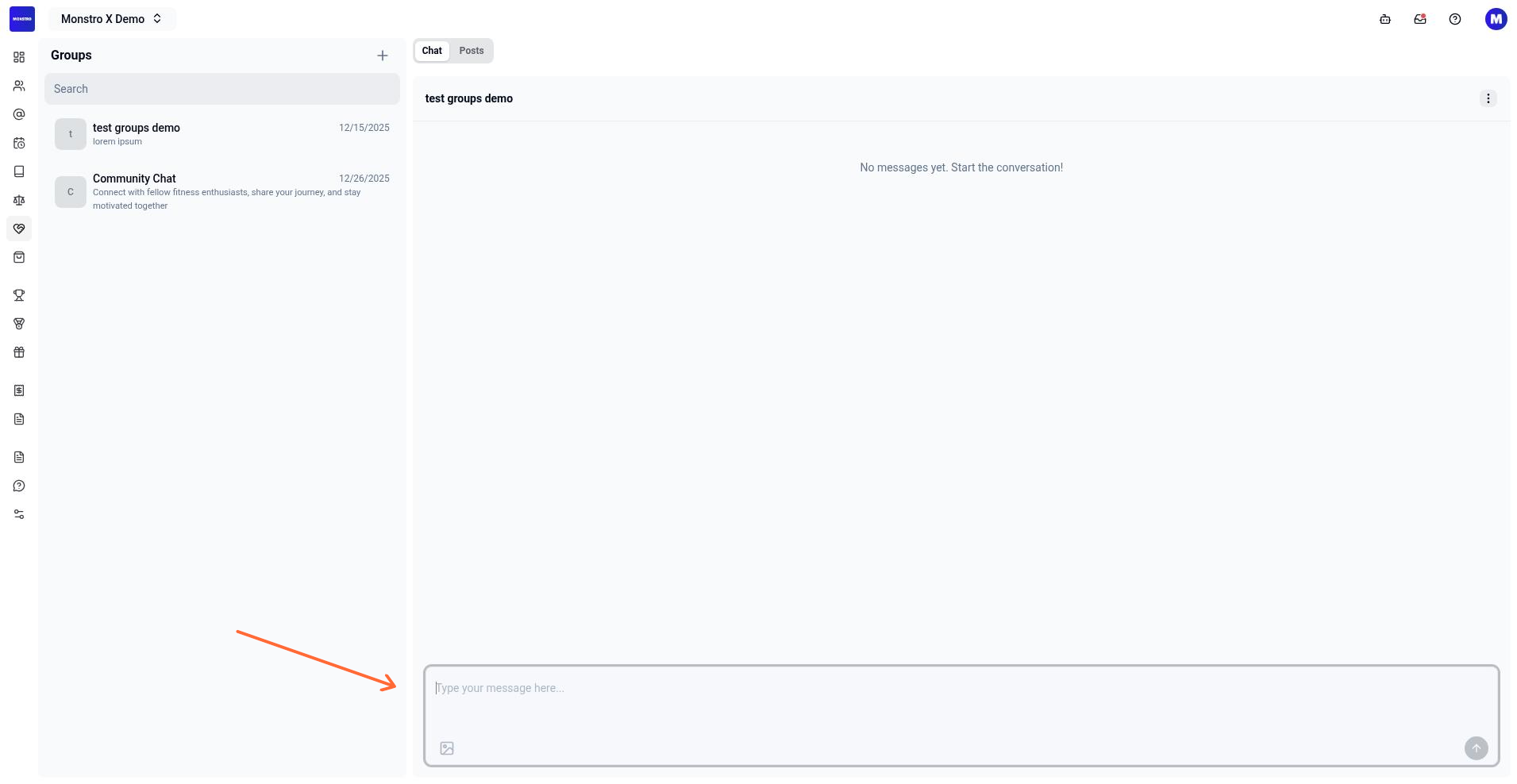
Click the composer at the bottom of the chat area. The placeholder reads Type your message here....
Type your message, then click Send.
Attach a file
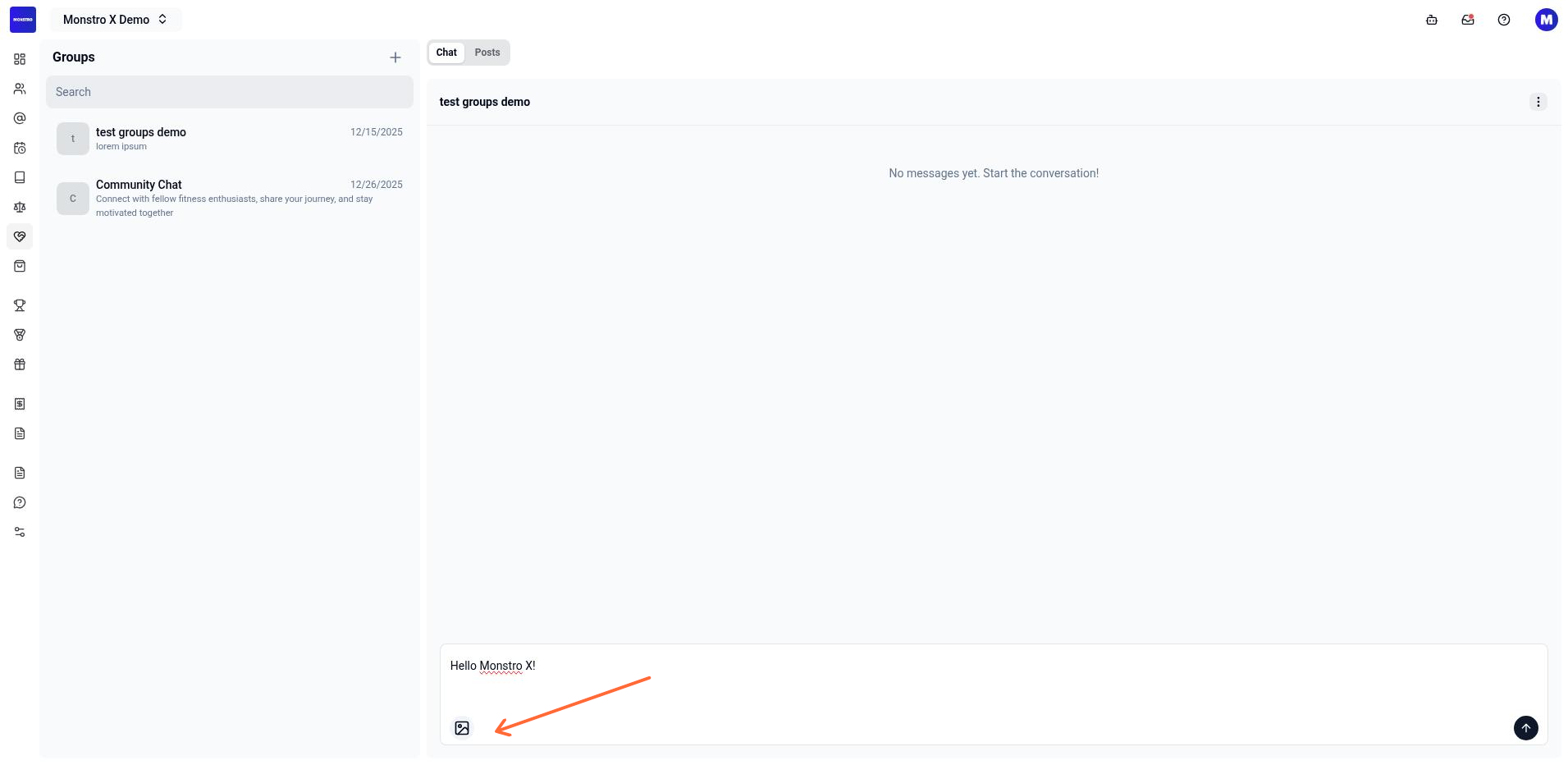
Click the Attach image button in the composer.
Select a file from your device. The composer supports images, video, audio, and PDFs.
Click Send to post the message with the attachment.
Only members who are already in the group can see the message. To add someone, open the group chat actions and select Add Member.
Create a group first
If no groups exist, the list shows an empty state and the composer is disabled.
On the Groups page, click Create Group.
Enter a Name and a Handle. The handle can only contain letters, numbers, hyphens, and underscores.
Choose a Type: Public or Private. Public is selected by default.
Optionally add a Description and a cover image.
Click to create the group, then return to the Chat tab to send your first message.